
User guide
How to use your association website
Choose who you are. Each part has short steps and a picture of what you will see.
For unit owners and residents
Everything you need to take part, in a few simple steps.
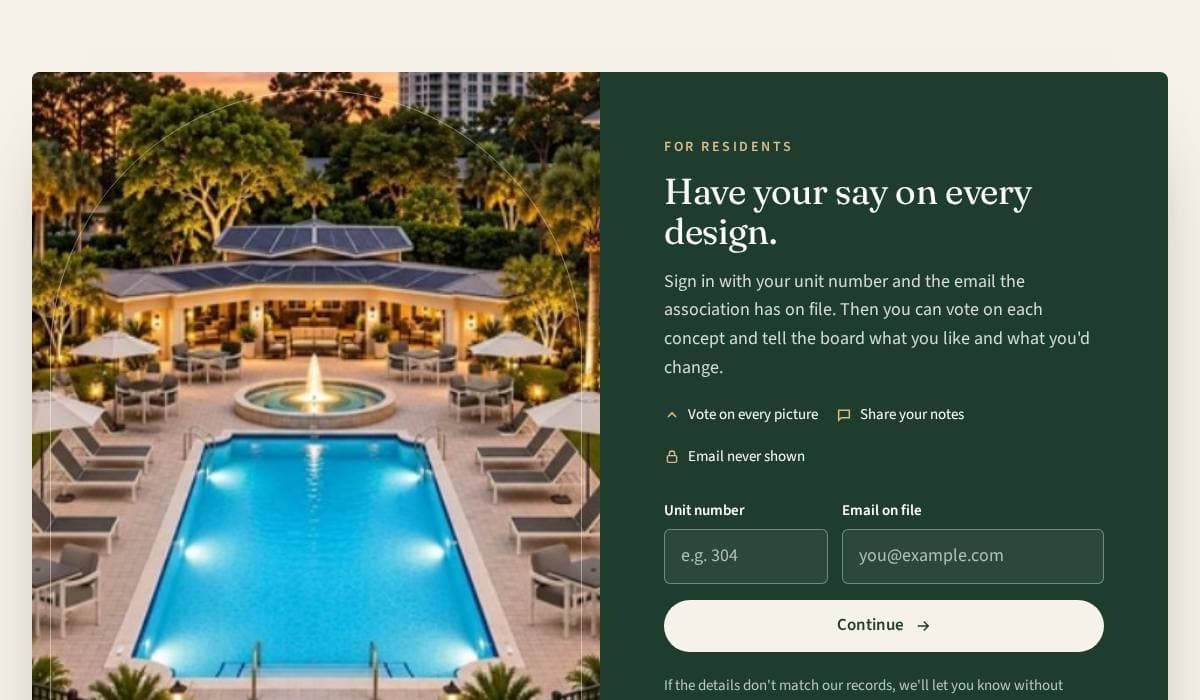
1. Sign in with your unit number and email
Go to your association's website. Under "Have your say on every design", type your unit number and the email the association has on file.
Press Continue. If the details don't match the list, the site tells you. Ask your board to check your unit and email.
2. Find your way with the menu
The menu at the top takes you to Home, Messages, Marketplace, Homes for sale, Documents, Report a problem and your Household.
Press Accessibility at the top to make the text larger, add more contrast, or turn off motion.

3. Look, vote and tell the board why
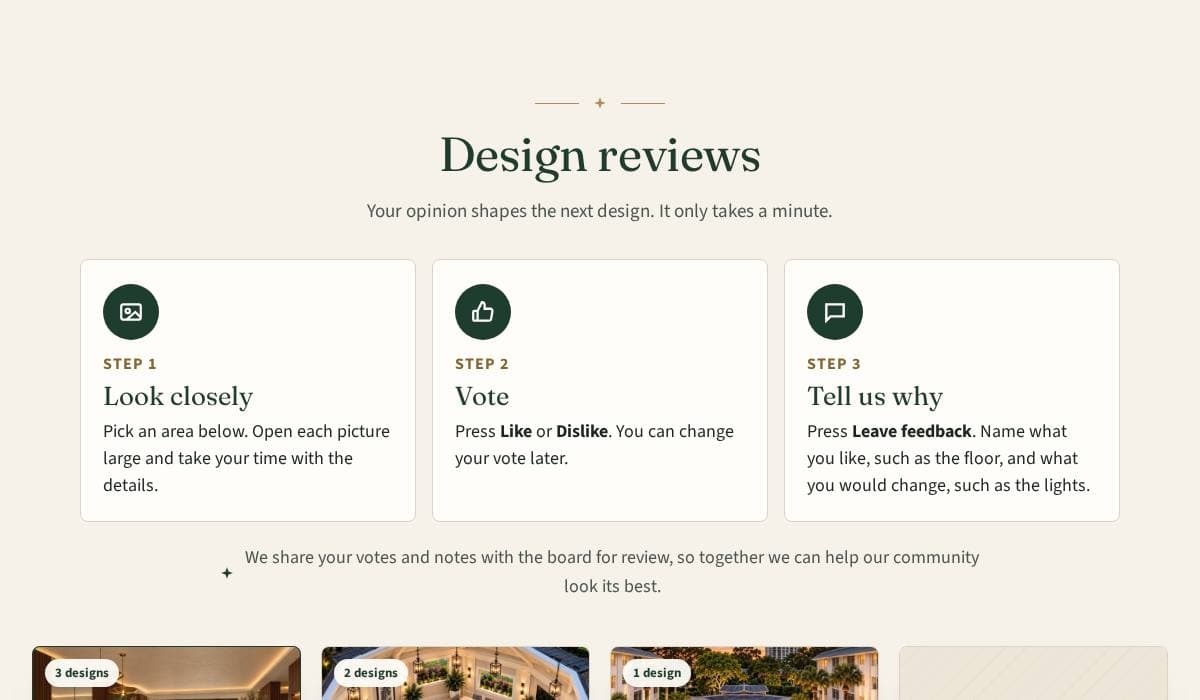
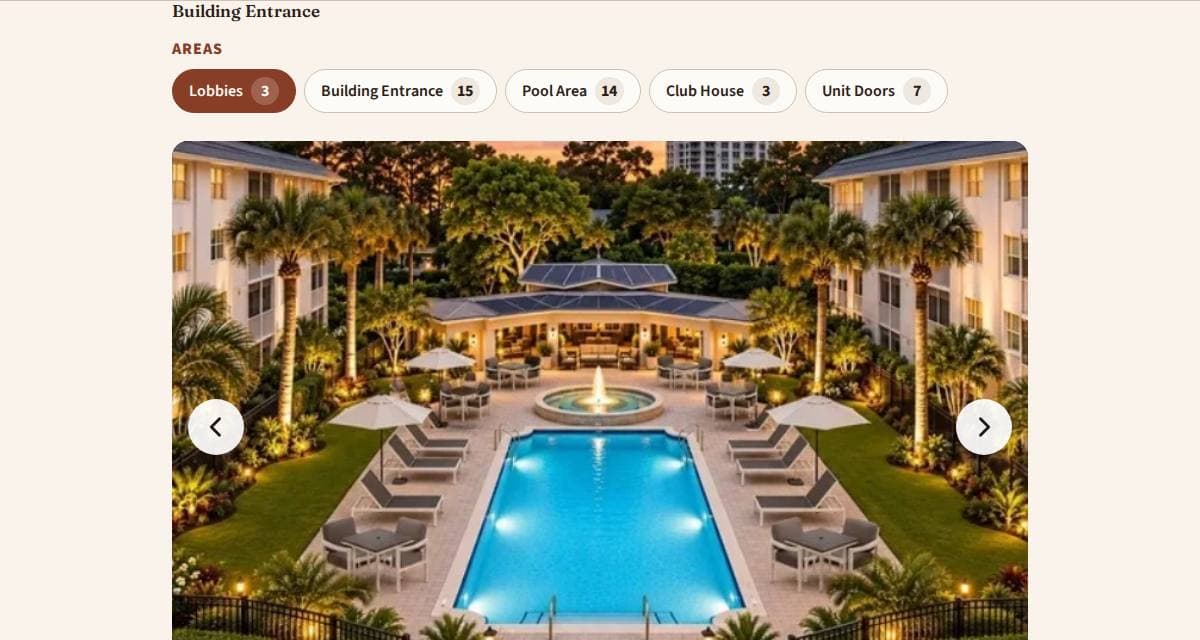
Open Design reviews and pick an area, such as the lobby or the pool.
Look closely at each picture, press Like or Dislike, and write a short note. You can change your vote later.
We share your votes and notes with the board for review. Tenants can look at the photos and notes. Voting is for owners on the unit list.
4. Report a problem
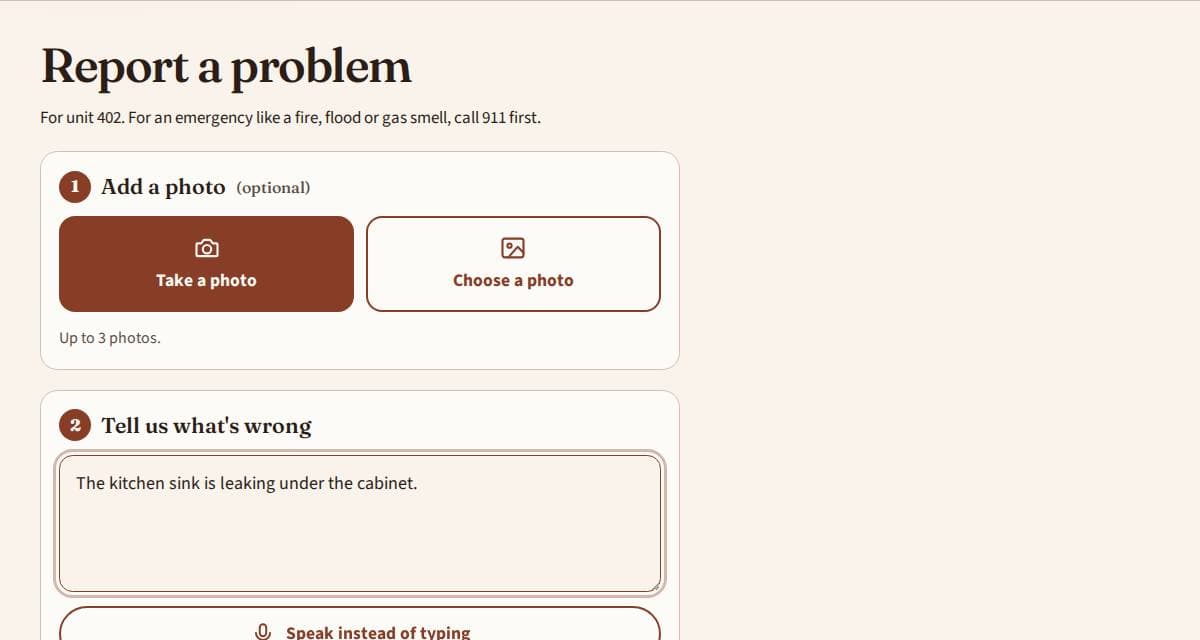
On a phone, press the Report a problem button at the bottom of the screen. On a computer, it is in the menu.
Press Take a photo to use your camera. Then type what's wrong, or press Speak instead of typing and say it. Choose where it is and press Send to maintenance.
It goes straight to the maintenance queue. You can follow it on the same page.
5. Send messages
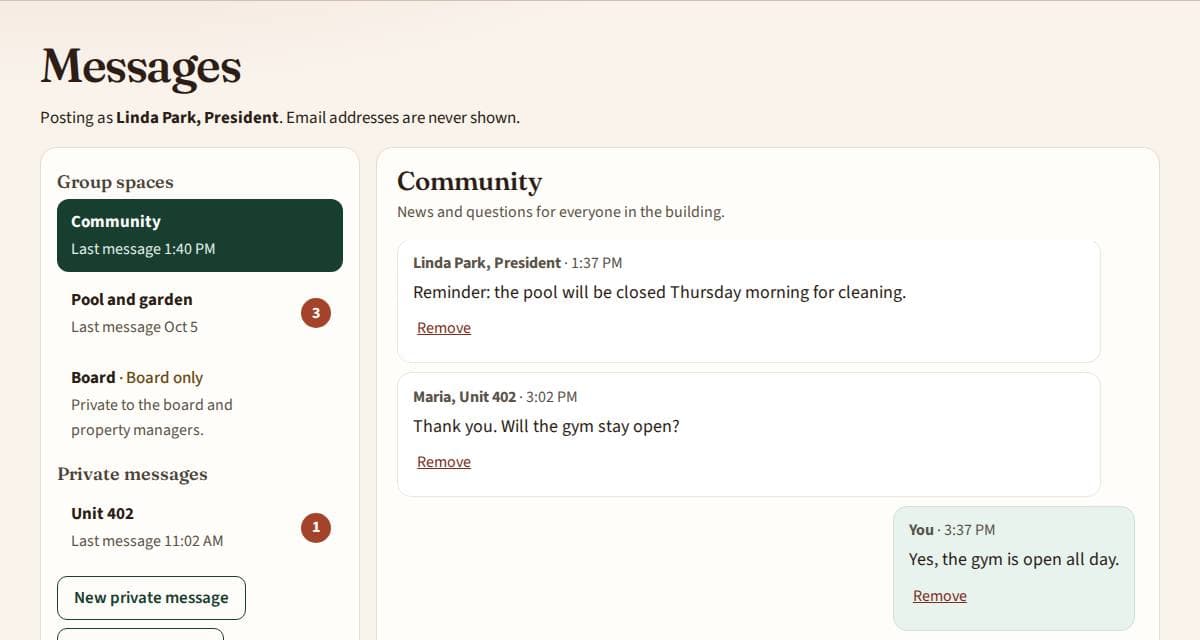
Messages has group spaces, such as Community, and private messages to the board or a neighbor.
Your email address is never shown to others. People see your name and unit.
6. Put the site on your phone
It works like an app, with no app store needed. Open your association's website on your phone.
iPhone: in Safari, press the Share button, then Add to Home Screen, then Add.
Android: in Chrome, press Add to home screen when the site offers it, or open the menu with three dots and press Install app.
The icon on your home screen opens the site straight away. Long-press it on Android for a Report a problem shortcut.
7. Buy, sell and find homes
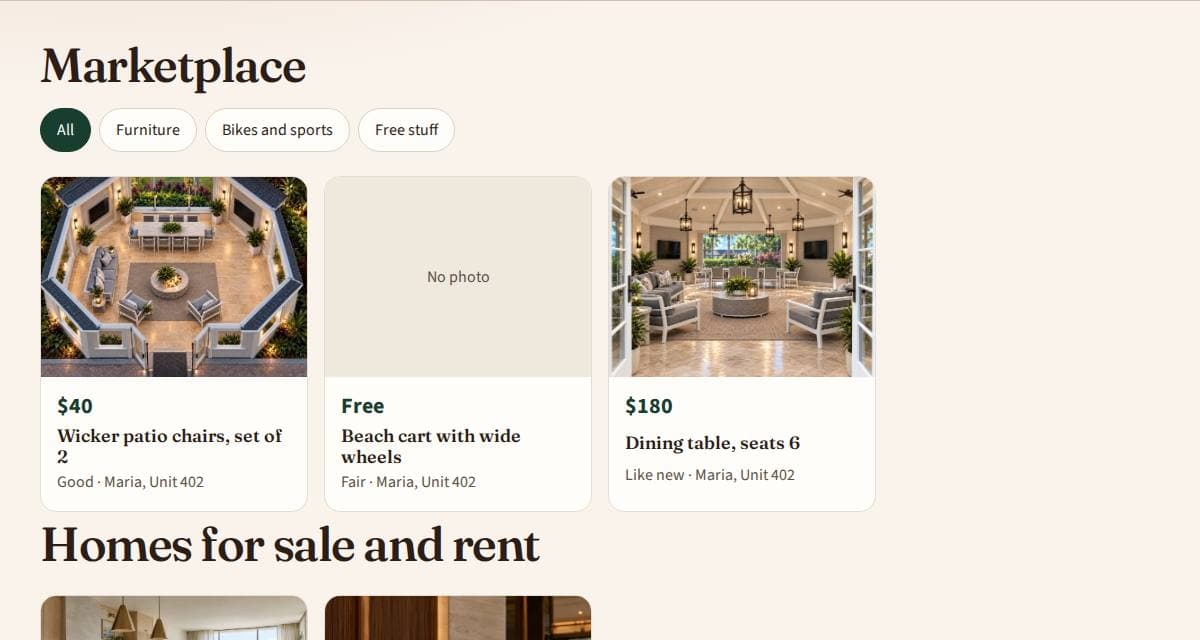
Marketplace is for items between neighbors, including free things.
Homes for sale and rent shows units listed by owners in the building.
8. Ask the assistant
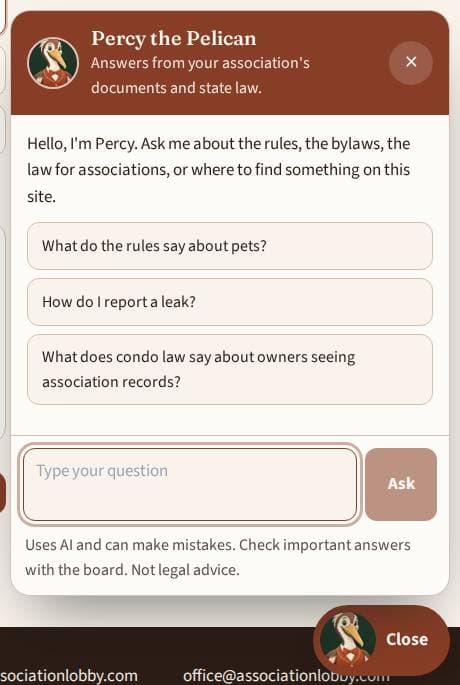
Press the round button with the character in the bottom corner, for example Ask Percy.
Type a question in your own words, such as "What are the pool rules?" or "Where do I report a leak?". The answer comes from your association's rules and documents, and from state law. Each answer lists where it came from.
If it can take you to a page, press the Go to button. Check important answers with the board. It is not legal advice.
For the board and the president
Board tools are in the menu under Board tools. Your dashboard shows what needs attention.
1. Start on your dashboard
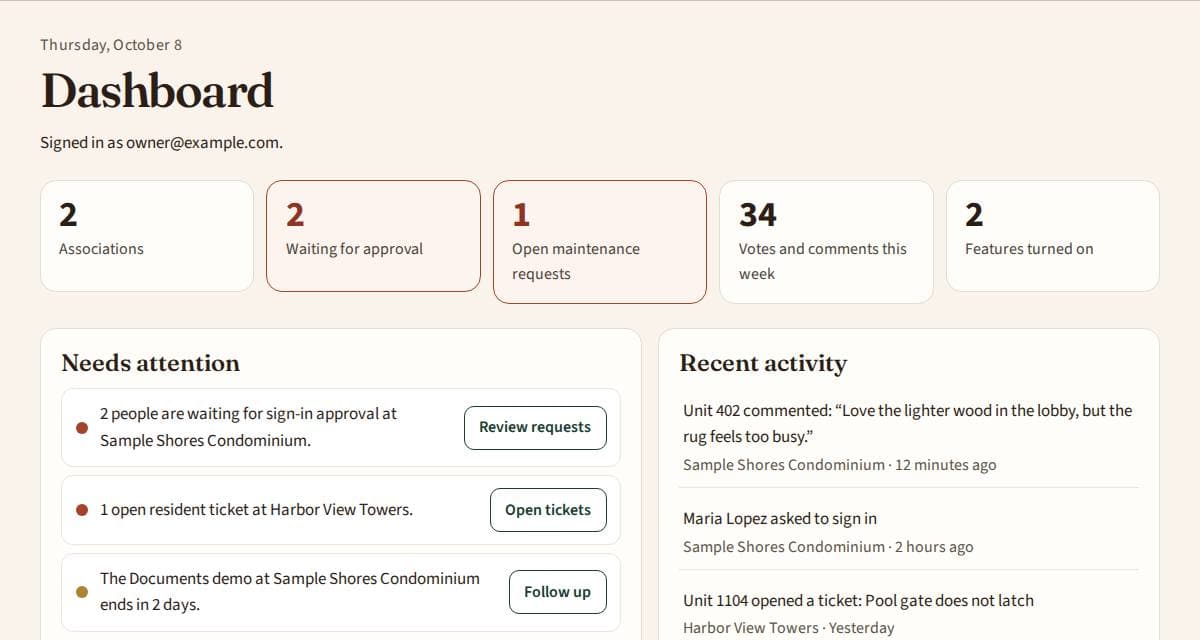
My dashboard lists sign-in requests to approve, open maintenance tickets and recent activity.
Press a button next to an item to go straight to it.
2. See every vote and note
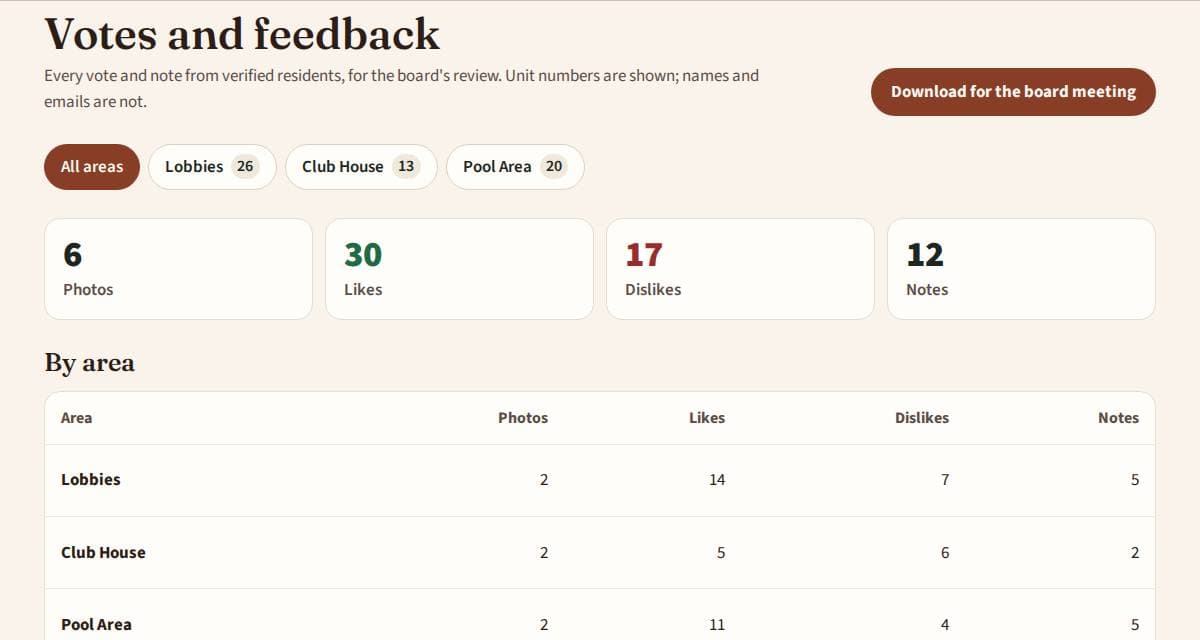
Open Board tools, then Votes and feedback. It shows each area, the photos ranked by support, and every resident note.
Press Download for the board meeting to get a spreadsheet.
3. Add and arrange photos
Open an area and choose Add photos. Pick pictures from your computer or phone.
Use Arrange photos to put the best ones first.
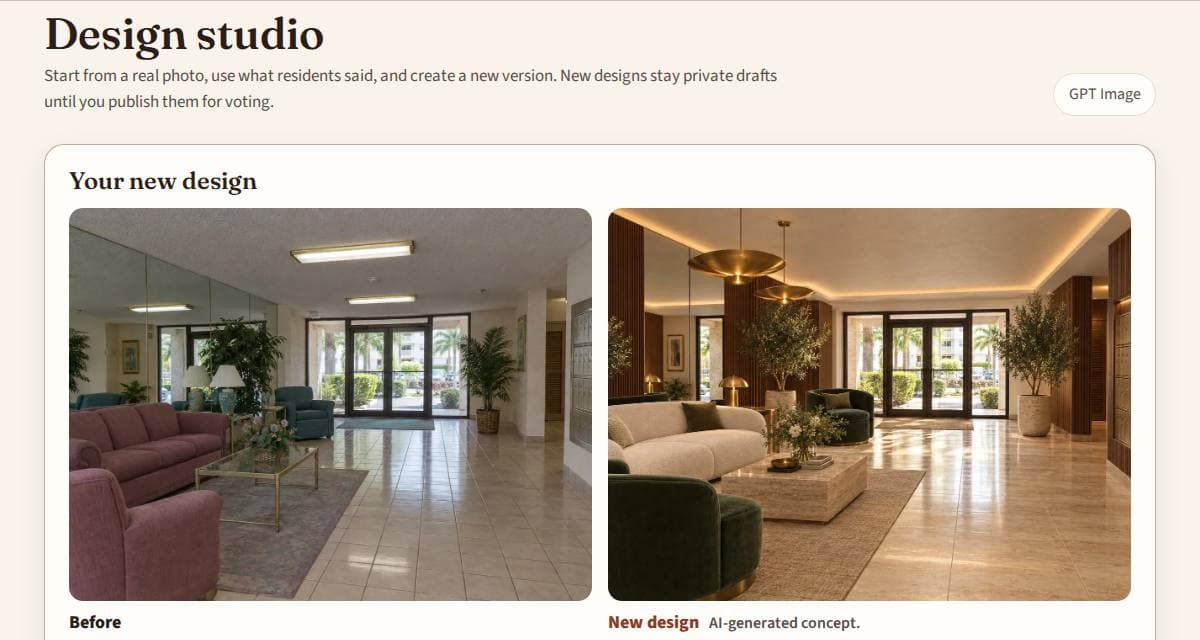
4. Make a new design in the Design studio
Choose an area and a photo, start from what residents said, pick a style, and press Create a new version of this photo.
New designs stay as private drafts until you publish them for voting.
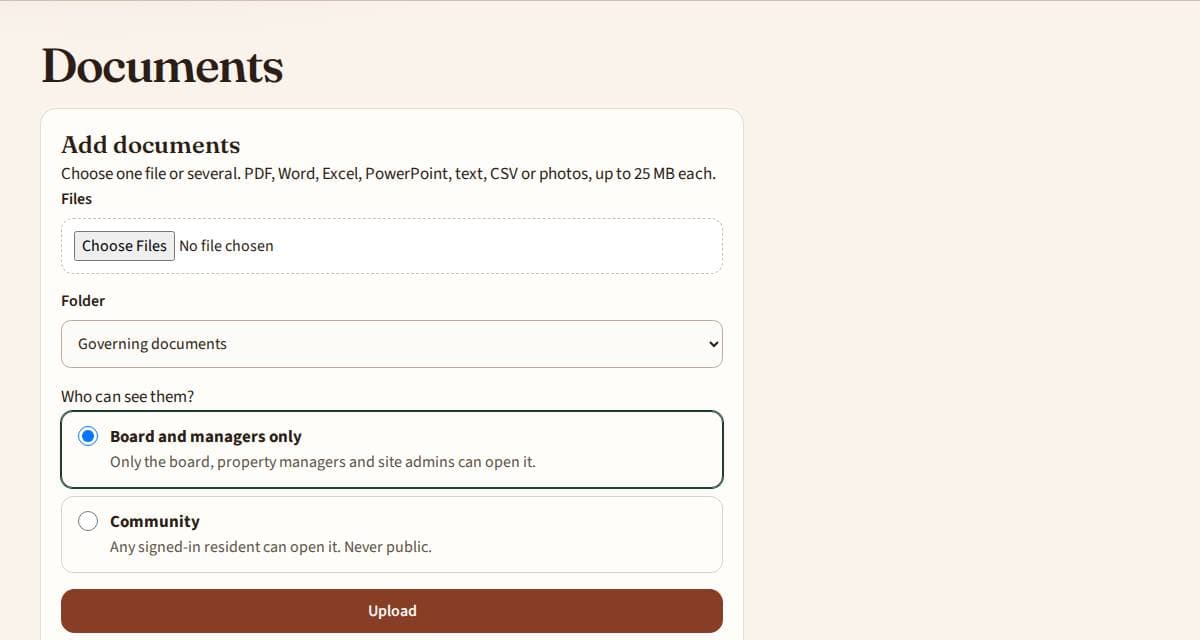
5. Share documents
Open Documents and choose Add documents. Pick a folder, such as Governing documents, Budgets and finance, or Rules.
Choose who can see each file: Board and managers only, or Community for all signed-in residents. Nothing is public.
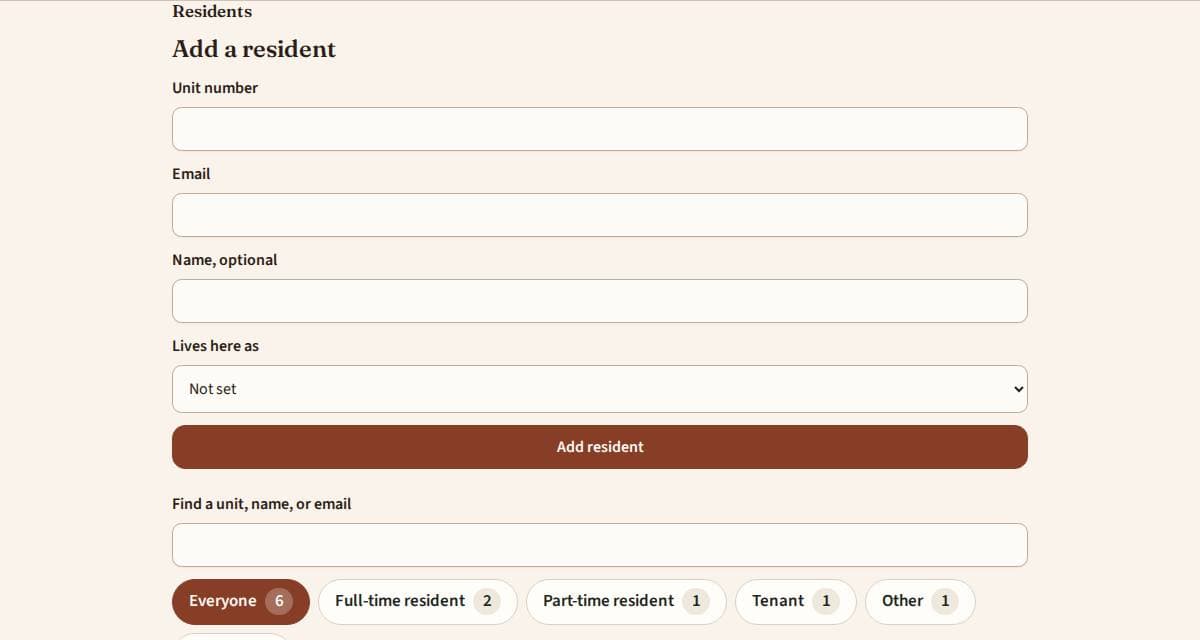
6. Keep the resident list up to date
Open Manage this site, then Resident list. Add a person with their unit, email and name, or upload the blank template.
Mark how each person lives here: Full-time resident, Part-time resident, Tenant or Other. Use the buttons above the list to show one group.
Pause keeps a person's votes but stops new ones. Remove deletes the person and their votes.
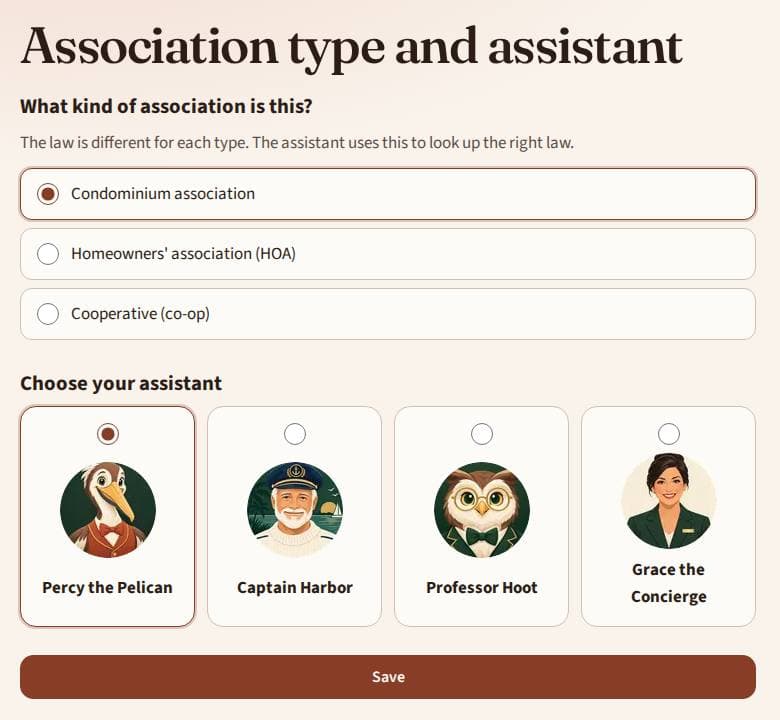
7. Set up the assistant
Open Manage this site, then Association type and assistant. Choose Condominium, HOA or Co-op, so it uses the right law, and pick a character.
Upload the declaration, bylaws, and rules and regulations under Documents. When the rules change, upload the new version. The newest upload wins, and you can delete the old one.
Residents only get answers from Community files. Each answer uses a few AI credits.
For property managers
You have the board's tools, plus offices and maintenance.
1. Handle maintenance tickets
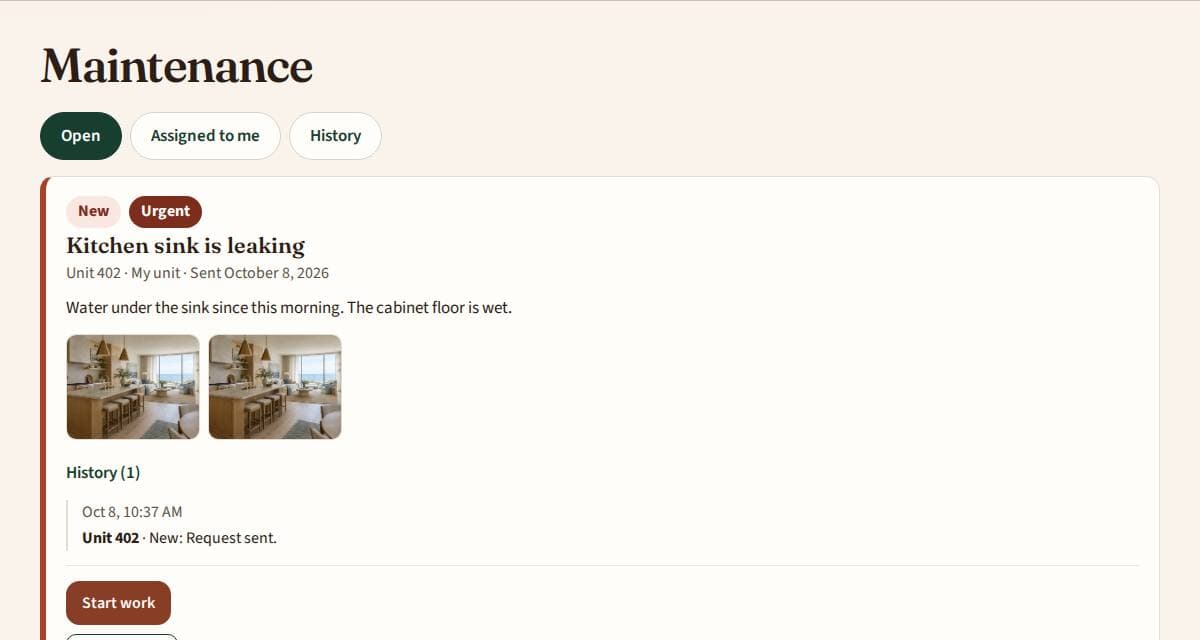
Open Board tools, then Maintenance queue. Use Open, Assigned to me and History to sort tickets.
Press Start work when someone is on it, and Mark done when it is fixed. The resident sees each step.
2. Set up offices and staff
Open Manage this site, then Offices. Name the president and board, and add maintenance staff by email. Staff don't have to be on the resident list.
3. Everything the board does
You can also use the dashboard, Votes and feedback, documents and the resident list, as described in the board section.
For maintenance staff
Your list of work, in one place.
1. See your work
Sign in and open Maintenance. Assigned to me shows your tickets. Open each one to see the photos and notes.
Press Start work when you begin and Mark done when you finish, with a short note.
Need help?
We are happy to help
Email office@associationlobby.com with your association's name and your unit number. Never send passwords by email.
If a sign-in link doesn't work, open it on the same device where you asked for it.